Filters
Filtering is another important feature in the Customerscore application. It helps you find specific customers from a larger group to work with more closely. At first, filtering might seem similar to segmenting, but this article will show you the differences.
Difference from Segmenting
The main difference is that filters are temporary and based on selected criteria to limit the displayed data in the customer table. Filters allow you to quickly adjust the data display to meet your current needs, either to show all customers or to narrow the selection to match an active segment. In contrast, segments are saved configurations that define groups of customers based on specific conditions.
Unlike segments, filters only affect data in the tables of active or churned customers.
Working with Filters
You can find the filter control above the table of active or churned customers. After clicking the Add Filter button, the following form will appear:
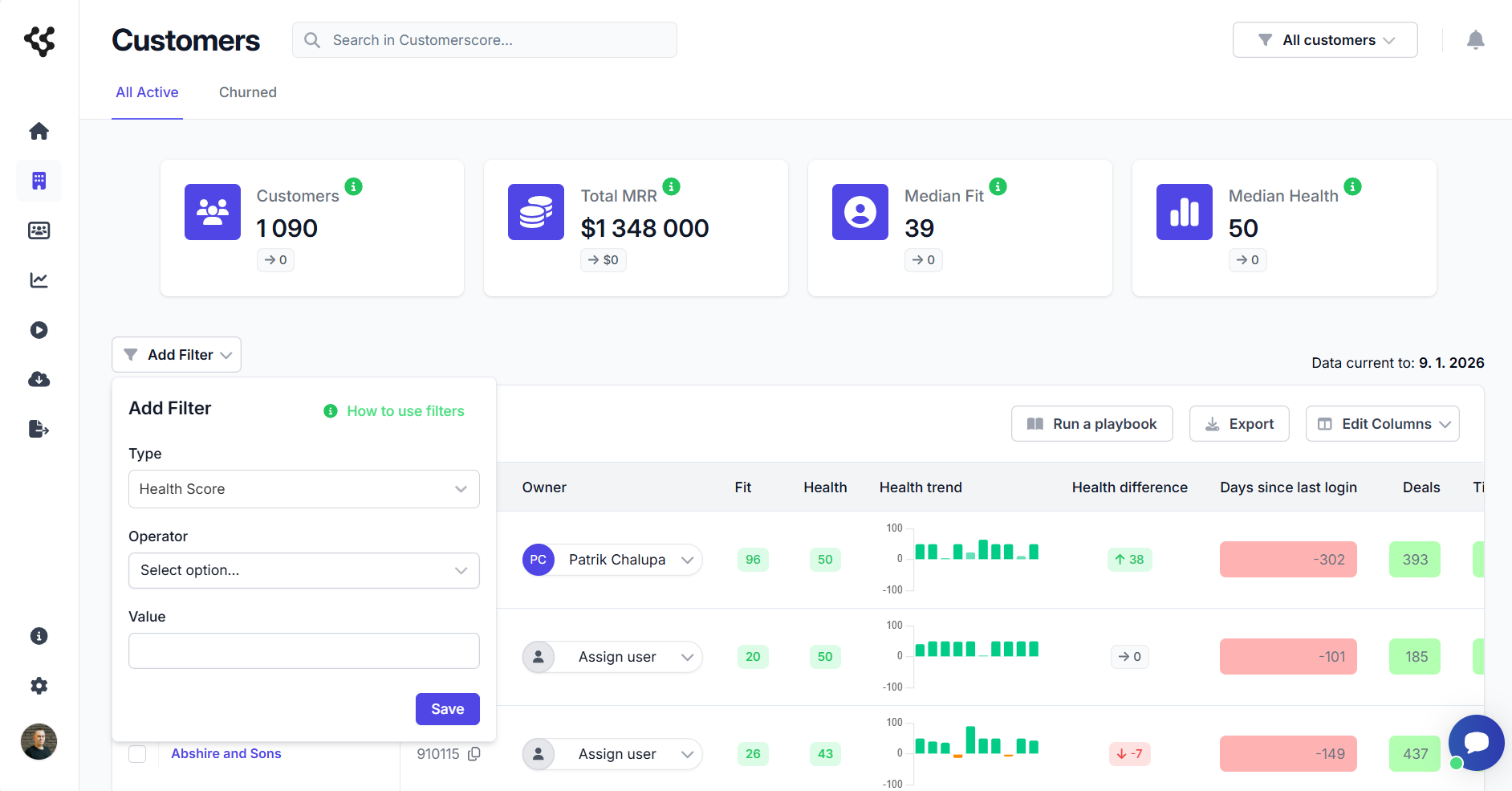
In the first field, you select the filter type. Your options include attributes such as Health Score, Fit Score, Owner, and others. It is also possible to filter by properties that are set up on your account. Next, you select the logical operator based on the filter type, and the last parameter is to enter the value. After clicking the Save button, the filter is saved to your personal profile and immediately applied to the data in the customer table.
Active filters are shown next to the Add Filter button above the customer table, as shown in the following image:

Please note that these filters apply only to your personal account. Active filters can be removed simply by clicking the Clear filters button, which will be immediately reflected in the customer table.
If you want to reuse the current filters without setting them up each time, you can convert them into a segment by clicking the Save as Segment button. In the form, choose visibility (public or private) and name the segment. After saving, the filters will be removed from your personal account and activated as a new segment. This segment will then appear in the list of existing segments.
By understanding and using filtering, you can quickly and easily adjust your data view to focus on the customers that matter most at any given time.