Intercom
Connect Intercom to Customerscore.io and see full customer conversations — every message, not just the first one — directly on each customer's detail page.
You'll need an Intercom account with admin permissions and 5 minutes.
Step 1 — Open the Intercom Developer Hub
Intercom tokens are created in the Developer Hub, not in your main Intercom inbox. Two ways to get there:
- Direct: go to developers.intercom.com (opens in a new tab), click the Developer Hub link in the top menu, and log in with your Intercom credentials
- From inside Intercom: click the gear icon (Settings) → on the Settings Home page, scroll to Integrations → click the Developer Hub link
Once you're in the Developer Hub:
- Click Your apps in the top menu
- Click New app
Step 2 — Create the app inside your workspace
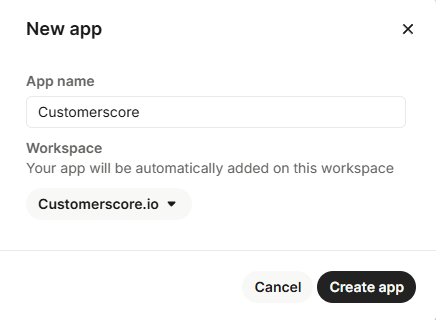
In the New app dialog:
- Name:
Customerscore.io - Workspace: pick your existing workspace from the dropdown. Do not create a new one.
- Click Create app
Step 3 — Copy the Access token
After clicking Create app, Intercom should drop you straight onto the Authentication tab. If you ended up somewhere else (for example Basic info), open Authentication from the left sidebar.
On the Authentication page:
- Check permissions. Intercom selects all of them by default, so usually you don't need to change anything. As a minimum, the app needs:
- Read and list users and companies
- Read conversations
- Read one user and one company
- Copy the Access token — a long string (over 100 characters) starting with
dG9rOj….
If you change permissions after copying, regenerate the token before pasting it into Customerscore.io.
Step 4 — Paste the token into Customerscore.io
- Open Settings → Providers (opens in a new tab)
- Click Connect to Intercom
- Paste the Access token and pick the initial sync window (how far back we download history — up to one year, six months by default)
- Optionally pick a Match by ID field — once the token is filled in, the form offers your Intercom fields usable for ID-based matching (see How conversations are matched below) — and connect

The first sync starts immediately. After that, conversations sync automatically once a day (around 5:00 in your account's timezone), and you can trigger a manual sync anytime with Sync now on the Intercom provider card.
How conversations are matched to customers
Each conversation is matched to one of your customers, in this order:
- Match by ID field (optional) — if you picked one in the connect form or sync settings, an Intercom field holding the same customer ID you sync into Customerscore.io: either the contact's External ID or a conversation custom attribute. When set, it always wins over email and domain matching. Only configure it when the field really carries your customer ID — otherwise leave it off.
- Email address — the contact's email matched against your customers' and contacts' known emails
- Company domain — the email's company domain, only when it identifies exactly one customer (free-mail domains like gmail.com are never used)
Conversations that don't match any of your customers are never stored. You can also exclude specific domains (partners, agencies) from matching in the sync settings.
What data we store
- Conversation subject, state (open/closed/snoozed), rating, and a deep link back to your Intercom inbox
- Every message of a matched conversation as plain text — who wrote it, when, and whether it was your team or the customer
- We do not store attachments, notes metadata, or conversations of people who aren't your customers
Disconnecting Intercom removes all synced conversations from Customerscore.io.