HubSpot
Connect HubSpot to Customerscore.io to sync CRM data, company or contact information, and customer attributes — push scores and health data back to HubSpot, and see Customerscore health and fit scores directly on your HubSpot records.
The connection runs through the Customerscore HubSpot app — it installs with a few clicks, you choose which permissions you grant, and there is no token to copy.
Connect with the Customerscore HubSpot App
Step 1: Start the Installation
In the Customerscore.io app, navigate to Settings → Providers and click Connect on the HubSpot card. If you found Customerscore in the HubSpot App Marketplace, the Install app button opens a short landing page: existing customers sign in and land directly in the HubSpot connection, new visitors can book a demo — integrations run on production workspaces, which the Customerscore team sets up with you.
Step 2: Choose Permissions
Before you are redirected to HubSpot, Customerscore shows the permissions the app will ask for:
| Permission | Type | Why Customerscore needs it |
|---|---|---|
| Read companies, read contacts | Required | Import your companies or contacts, their properties and the activities logged on them (see Activities sync) |
| Read company / contact property settings | Required | List your HubSpot properties in the field-mapping step |
| Read record owners | Required | Backs the Sync record owners option (see Record owner sync) |
| Write companies / write contacts | Optional | Create the Customerscore score properties on your records and keep them up to date (see Syncing data back to HubSpot) |
| Read logged e-mails | Required | Import the e-mails logged on your records (see Activities sync); calls and meetings need no extra permission |
Turn off any optional permission you do not want to grant — everything Customerscore writes is optional. Without the write permission Customerscore only reads data and never changes your HubSpot records; it also cannot create the score properties, so the scores stay visible in the Customerscore card only. HubSpot shows the same optional permissions once more on its consent screen, where you can untick them again.
You can change the granted permissions at any time from the HubSpot card in Settings → Providers → Manage → Change permissions. This re-opens the HubSpot consent screen; your field mapping and filters are kept.
Click Install Customerscore in HubSpot, sign in to HubSpot if needed, pick the HubSpot account and confirm. You are redirected back to Customerscore.io.
A HubSpot account can be connected to one Customerscore.io workspace only. Installing it for a second workspace fails until it is disconnected in the first one.
Step 3: Configure Field Mapping
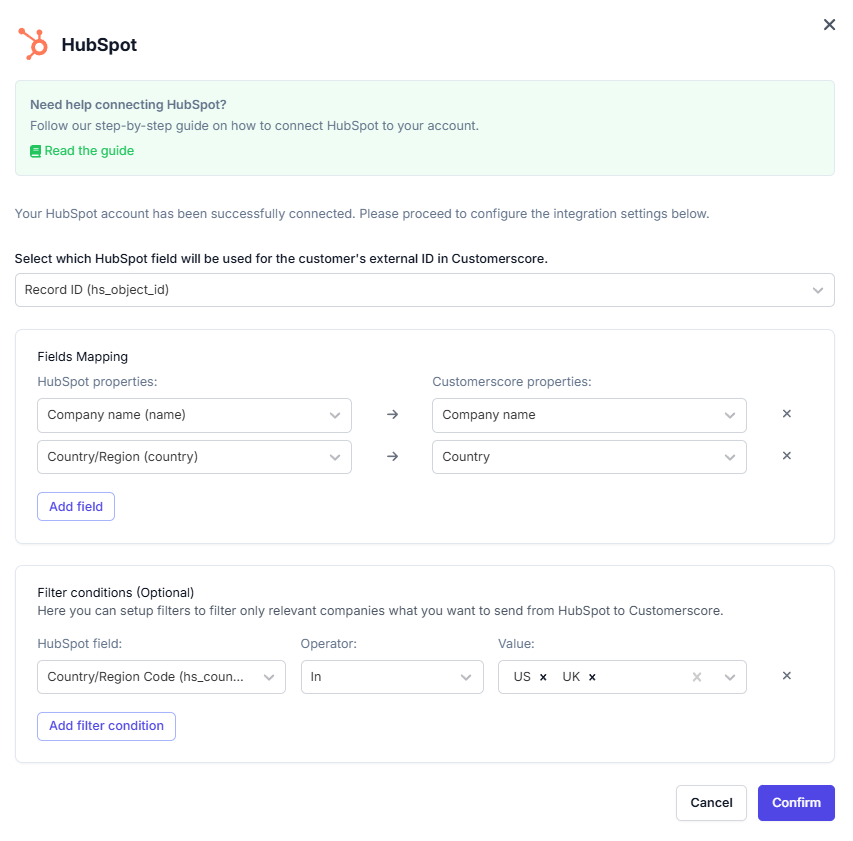
After the installation you are asked to select which HubSpot object — Company or Contact — represents a customer in Customerscore.io, and which HubSpot property will serve as the customer's External ID. The entity cannot be changed later; to switch, disconnect and connect again.
Then you proceed to field mapping. For each field mapping, you choose:
- HubSpot field — the property in HubSpot (left side)
- Customerscore.io attribute or metric — the corresponding field in Customerscore.io (right side)
- Direction — whether the data flows into Customerscore.io (Inbound) or is pushed back to HubSpot (Outbound)
You can map as many fields as needed in both directions. Optionally, you can apply filter conditions to include only specific records — all conditions are combined with AND.
Above the mapping, Create score properties in HubSpot maps the health, fit and churn-risk scores in one click and creates the matching properties in HubSpot when you confirm — see Let Customerscore create the score properties.
Click Confirm to save the configuration. The first sync starts immediately. With companies as the customer entity you can additionally import their contacts on the Contacts tab — see Contacts Sync — and the activities logged on your records on the Activities tab, see Activities Sync.
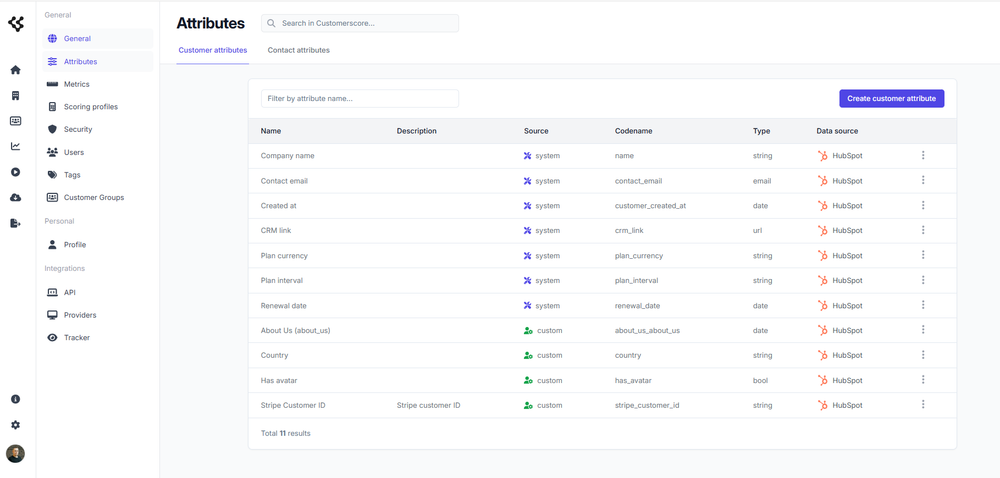
Only attributes and metrics with their data source set to HubSpot will be imported from your HubSpot account. You can manage data sources in the Settings section of the Customerscore.io app. For each attribute or metric, use the Data Source column in the table to ensure it's correctly set to HubSpot.
Sync Schedule and History
Customerscore downloads a full snapshot of the configured records on your account's sync schedule (daily by default; weekly or monthly on request). Every run is a complete pull so churned customers are detected reliably.
- Sync now: open the HubSpot card in Settings → Providers → Manage and use Save & Sync now, or open Settings → Imports → HubSpot sync and click Run sync now.
- History: Settings → Imports → HubSpot sync lists every run with the number of fetched, synced and skipped records (records without a value in the External ID property are skipped), the contact counts when the contacts sync is on, and the error details of failed runs. The Type column tells a customer snapshot apart from an activities import, which runs right after the customers of that snapshot are processed and reports its own per-type counts. Use Run sync now to import activities immediately instead of waiting for the next scheduled run.
Record Owner Sync
Switch on Sync record owners in the configuration (the option sits next to the days offset in the setup form and on the Sync tab of Settings → Providers → HubSpot → Manage) and the owner of a HubSpot company or contact becomes the owner of the customer in Customerscore.io:
- Matching by e-mail. The HubSpot owner's e-mail is matched against the users of your Customerscore.io workspace. Invite your team members with the same e-mail they use in HubSpot (Settings → Users).
- First sync and every daily sync set the owner of all synced records.
- Real time. When the owner of a record changes in HubSpot, the customer owner in Customerscore.io is updated within seconds — no need to wait for the next sync.
- Mirrors HubSpot. A record without an owner in HubSpot has no owner in Customerscore.io either — removing the owner in HubSpot removes it here. Only an owner without a Customerscore.io user leaves the customer's current owner unchanged. The number of matched owners per run is shown in the Owners column of Settings → Imports → HubSpot sync.
Reading record owners is part of the permissions granted at installation, so the option is on by default in the setup form and you only decide whether to keep it on. Owners are synced one way, from HubSpot to Customerscore.io — an owner assigned in Customerscore.io is not written back to HubSpot.
Contacts Sync
When Company is your customer entity, the HubSpot app can also import the contacts of your synced companies as customer contacts in Customerscore.io. Open Settings → Providers → HubSpot → Manage, switch to the Contacts tab and turn on Sync contacts:
- Contact external ID — the HubSpot contact property that identifies a contact in Customerscore.io (for example the e-mail).
- Fields mapping — map HubSpot contact properties to your Customerscore.io contact attributes and metrics. Exactly one row must target Contact name; HubSpot has no full-name property, so that row offers Full name (first + last name), which combines the first and last name for you. New contact properties can be created right from the mapping.
- Filter conditions (optional) — sync only the relevant contacts; all conditions are combined with AND.
There is nothing to configure for the link between a contact and its customer: every contact is attached to the customer created from its primary associated company in HubSpot. Contacts without a primary company, contacts whose company is not synced (filtered out or without an External ID value) and contacts without a value in the Contact external ID property are skipped and counted in the sync history (Contacts fetched / synced / skipped columns).
Contacts are processed a few minutes after the companies of the same run, so they appear shortly after the customers. The sync is one-directional (HubSpot → Customerscore.io); contact owners are not synced and contact data is not written back to HubSpot. Switching the option off keeps your mapping so you can turn it back on later; the contacts already imported stay in Customerscore.io.
Contact attributes and metrics follow the same rule as customer fields: only properties with their data source set to HubSpot are imported. The Contact name property must be fed by HubSpot as well — if another integration (PostHog, Mixpanel or a file import) owns it, change its data source in Settings → Contact attributes before switching the contacts sync on.
Activities Sync
The HubSpot app can bring the activities logged on your synced records onto the customer. Open Settings → Providers → HubSpot → Manage, switch to the Activities tab and turn on the types you want — everything starts off.
| HubSpot activity | Where it appears in Customerscore.io |
|---|---|
| E-mails | Conversations tab, grouped into their original threads |
| Calls | Calls tab, with outcome, duration, numbers, notes and recording |
| Meetings | Meetings tab, next to Fireflies, tl;dv and Kickscale meetings |
An activity is attached to the customer through its HubSpot association: anything logged on a synced company (or on one of its contacts when the contacts sync is on) lands on that customer. Activities associated with records you do not sync are skipped and counted in the sync history. The first run imports the last 180 days, later runs only what changed — an activity edited in HubSpot is refreshed on the next run.
An activity deleted in HubSpot stays in Customerscore.io — deletions are not propagated by the import.
Imported activities are read-only in Customerscore.io — HubSpot owns them, and each one carries an Open in HubSpot button that takes you straight to the record it was logged on. Their owners are matched to your users by e-mail, exactly like record owners; an owner without a Customerscore.io user is shown by name.
Calls and meetings need no extra permission — HubSpot covers them with the Read contacts permission your app already has. E-mails are the exception: they need Read logged e-mails, so an installation created before the activities sync existed has to be re-authorized via Permissions → Change permissions before e-mails are imported. The Activities tab warns you when that is the case.
If the App Is Uninstalled in HubSpot
If someone uninstalls the Customerscore app in HubSpot or revokes its access, the next sync fails and the HubSpot card in Settings → Providers switches to an error state with a Reconnect HubSpot button. Reconnecting re-runs the installation; your mapping and filters are kept.
Disconnecting
Manage → Disconnect from HubSpot removes the configuration in Customerscore.io and uninstalls the app from your HubSpot account (HubSpot notifies the account's super admins by e-mail). The synced data already in Customerscore.io stays.
Customerscore Card in HubSpot
The app adds a Customerscore.io card to the right sidebar of HubSpot company and contact records. The card shows the customer's health score (−100 … +100, with the change since the previous score), fit score, churn risk (1 … 5, higher is worse) and upsell potential (1 … 3), each with a coloured verdict such as Healthy, At risk or Very high risk that matches the Customerscore.io dashboard, together with a link to the customer in Customerscore.io. Scores that have not been calculated yet are left out.
Below the scores the card can list additional Customerscore attributes and metrics. Choose them in Settings → Providers → HubSpot → Manage → HubSpot app card (up to 12).
- On company records the card matches the company by its HubSpot ID (accounts syncing companies).
- On contact records it shows the contact's own customer when contacts are the synced entity, otherwise the customer of the contact's primary associated company.
- Records that are not synced (filtered out, missing External ID, or not synced yet) show an explanatory empty state.
The card is available on every HubSpot subscription tier.
The card is rendered from Customerscore.io each time you open a record, so its values are never stored in HubSpot. That means you cannot filter, sort or report on them in HubSpot, use them in lists or workflows, or add them as columns to a list view. To do any of that, the scores have to exist as real HubSpot properties — see Syncing data back to HubSpot.
Syncing Data Back to HubSpot (Outbound)
In addition to importing data from HubSpot, Customerscore.io can push data back to your HubSpot company or contact records. This includes calculated scores, health data, churn signals, and any custom attributes or metrics you track in Customerscore.io. Your sales and CS teams can then see this information directly in HubSpot without switching tools.
The following Customerscore.io fields can be synced outbound to HubSpot:
| Customerscore.io Field | Description |
|---|---|
| Fit Score | How well a customer fits your ideal customer profile |
| Health Score | Overall customer engagement and health |
| Health Difference | Change of the health score since the previous snapshot |
| Churn Risk | Predicted churn risk level |
| Upsell Score | Likelihood of an upsell |
| Churned | Whether the customer has churned (true/false) |
| Custom attributes | Any customer attributes you have configured in Customerscore.io |
| Custom metrics | Any custom metrics you track in Customerscore.io |
Customerscore.io writes into HubSpot properties, so a property has to exist for every field you push. Customerscore can create the score properties for you; anything else you create in HubSpot yourself.
Let Customerscore Create the Score Properties
On the Customers tab of the HubSpot configuration, switch on Create score properties in HubSpot. An outbound mapping row appears for each score straight away, so you can see what will be written where, and the properties themselves are created in HubSpot when you confirm the configuration — grouped under Customerscore.io on the record.
| Customerscore.io field | HubSpot property | Type |
|---|---|---|
| Health Score | customerscore_health_score | Number |
| Health Difference | customerscore_health_difference | Number |
| Fit Score | customerscore_fit_score | Number |
| Churn Risk | customerscore_churn_risk | Number |
| Upsell Score | customerscore_upsell_score | Number |
These are the scores shown at the top of the Customerscore card. The fit score is only offered when your workspace uses it. The optional attributes and metrics listed below the scores on the card are not created — pick those yourself if you want them in HubSpot too.
A property that already exists is left exactly as it is, so saving the configuration again is safe. Once the properties exist the option stays switched on — switching it off would only unmap the rows, it cannot delete anything in HubSpot. To undo it, remove the rows from the field mapping and delete the properties in HubSpot.
Creating a property does not add it to your company or contact list view — HubSpot has no API for that. Open the list in HubSpot, use Edit columns and pick the Customerscore properties; an admin can tick Show these columns by default for all views to apply them for everyone. The same properties are then available in HubSpot filters, saved views, lists, workflows and reports.
Create the Properties Yourself
Create the properties in HubSpot when you want to push custom attributes and metrics, or when you did not grant the write permission at installation.
- Go to Settings → Data Management → Properties
- Select Company properties (or Contact properties) and click Create property
- Create a property for each field you want to receive from Customerscore.io. Use Number for the scores and Single checkbox for Churned.
You can name the properties however you like — just make sure to select the right one when configuring the field mapping in Customerscore.io.
Outbound sync requires the write permission for the synced object. Grant Write companies / Write contacts during the installation or later via Change permissions. If outbound fields are mapped without the write permission, Customerscore shows a warning and skips the write-back.
Map Outbound Fields in Customerscore.io
The score rows are filled in for you by the option above. For anything else, add a mapping in the field-mapping step (Step 3 above) and set its direction to Outbound. On the left, select the HubSpot property you created; on the right, select the corresponding Customerscore.io attribute or metric.
Note that Fit Score, Health Score, Health Difference, Churn Risk and Upsell Score are available for outbound sync only — they cannot be used as inbound fields.
When Does Outbound Sync Run?
Outbound sync runs automatically after each data import cycle completes. This means that every time Customerscore.io finishes processing your customer data and recalculating scores, the updated values are pushed to HubSpot shortly after.
Both active customers and customers who recently churned are included in each outbound sync.
What Happens Next?
Once the setup is complete, your HubSpot account is connected to the Customerscore.io app. By default, we sync your data on a daily basis.
If you prefer a weekly or monthly sync schedule, feel free to contact us and we'll adjust it to fit your needs.