Smart Alerts
Smart Alerts notify you the moment something important changes in your customer base — a usage drop, a trial account heating up, an MRR swing, or a customer that just churned. Instead of digging through dashboards, the right people get a message in their inbox or Slack as soon as it happens, so your team can act while it still matters.
Where to Find Smart Alerts
Open Automations → Smart Alerts. The main table lists every alert in your account and lets you create, edit, run, and review alerts.
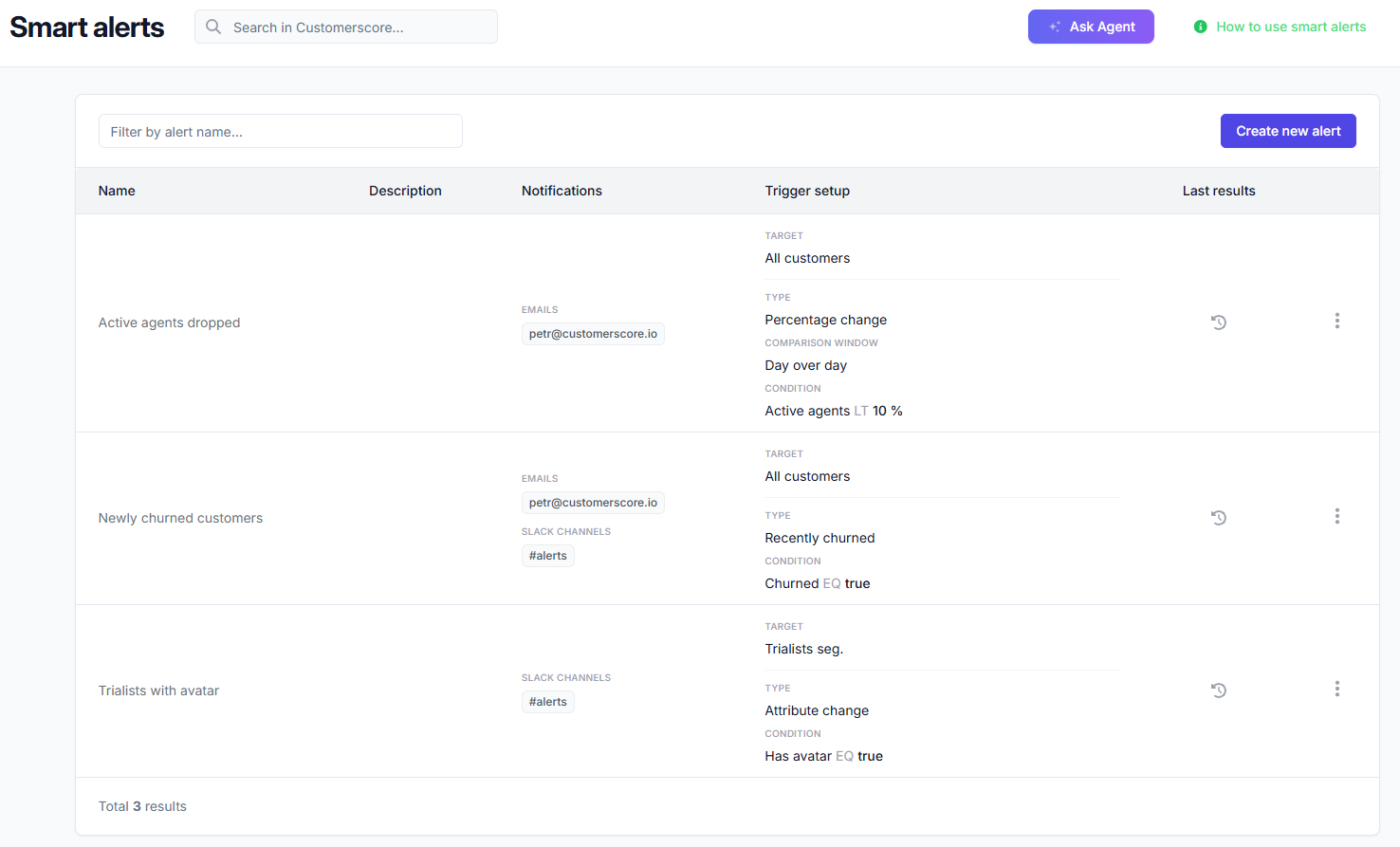
Each row shows:
- Name and Description — what the alert is for.
- Notifications — the email recipients and/or Slack channel that receive the alert.
- Trigger setup — the target audience and the conditions that fire the alert.
- Last results — open the most recent run to see exactly which customers matched.
- Actions — send the alert now, edit it, or delete it.
You can create an unlimited number of alerts to cover as many scenarios as you need.
Creating a New Alert
Click Create New Alert. The form is split into recipients, target, and conditions.
Alert details
- Alert name (required) — a short, descriptive name (up to 60 characters).
- Description (optional) — a longer explanation of what the alert does (up to 500 characters).
Recipients
You must set at least one recipient — an email, a Slack channel, or both.
- Recipient's emails — pick teammates from the list or type any email address. Your own email is added automatically when you create a new alert.
- Slack channel (optional) — choose a channel to post the alert to. This appears only when Slack is connected to your account. If it isn't connected yet, you'll see a link to Settings → Providers to set it up. See the Slack delivery section below.
Target
- Target (required) — choose All customers or a specific segment. Use a segment to focus an alert on a group such as "Enterprise tier" or "Active trials".
Alert conditions
An alert can have one or more conditions. Add as many condition rows as you need; the alert evaluates them together. Each condition has up to four parts:
- Type — what kind of change to watch for (see Condition types).
- Filter — which property, score, or attribute the condition applies to.
- Operator — how to compare the value (see Operators).
- Value — the change amount or the exact number to compare against.
- Comparison window — for the numeric change types, the time span to compare over (see Comparison window).
Condition Types
| Type | What it detects |
|---|---|
| Absolute change | The raw difference between the previous and current value (e.g. MRR dropped by 500). |
| Percentage change | The percentage difference between the previous and current value (e.g. usage fell by 20%). |
| Threshold | The current value crosses a fixed number that it hadn't crossed before (e.g. opened deals reaches 200). |
| Recently churned | A customer has just churned in the latest data snapshot. |
| Attribute change | A customer attribute changed to a value you care about (e.g. plan changed, owner set, country became "US"). |
| Entered segment | A customer newly entered the target segment (e.g. dropped into your "At risk" segment). |
Choosing what to watch (the Filter)
For the numeric types (Absolute, Percentage, Threshold) the Filter lets you pick from:
- Predefined Alert Attributes — Fit Score, Health Score, Churn Risk, Churned (availability depends on your plan and enabled features).
- Metrics — your own numeric properties (revenue, logins, deals, and any custom metric you track).
For Attribute change, the Filter lists your custom customer attributes (text, number, or true/false), and the alert fires when that attribute changes to match the operator and value you set.
For Recently churned, no filter is needed — it always watches the churned status.
For Entered segment, the Target segment is the trigger — the alert fires for every customer that newly enters it, so there is no filter, operator, or value to set. Customers already in the segment when you create the alert don't fire it; only genuinely new entries do. The notification links straight to the segment's worklist, though the alert works whether or not worklist mode is enabled.
Operators
The available operators depend on the condition type and the kind of value being compared.
Numeric change types (Absolute, Percentage, Threshold):
| Operator | Meaning |
|---|---|
< | Less than |
≤ | Less than or equal to |
> | Greater than |
≥ | Greater than or equal to |
= | Equal to |
Attribute change unlocks more operators depending on the attribute type:
- Numbers: less / greater / equal / not equal, plus Is known and Is unknown.
- Text: equal, not equal, Contains, Not contains, Is one of, Is none of, Is known, Is unknown.
- True/False: equal to, Is known, Is unknown.
Is known / Is unknown check whether the attribute has any value at all — no comparison value is needed.
Recently churned uses a fixed condition (equals "true") and needs no further setup.
Comparison Window
For the numeric change types, the Comparison window controls which two points in time are compared:
- Day over day (default) — today's value vs. the previous snapshot.
- Week over week — today's value vs. roughly 7 days ago.
- Month over month — today's value vs. roughly a month ago.
This lets you separate short-term noise from longer trends — for example, a week-over-week MRR drop is usually more meaningful than a single-day dip. The window applies only to the numeric types; Recently churned, Attribute change, and Entered segment always look at the latest change.
Slack Delivery
If your account is connected to Slack, you can send any alert to a channel in addition to (or instead of) email. Select the channel in the alert form, and each time the alert fires, CustomerScore posts a message listing the affected customers with links straight to their profiles. For very large runs the message lists the first batch of customers and summarizes the rest as "…and N more". To connect Slack, go to Settings → Providers.
Reviewing Results
Last results
Open Last results on any alert to see its most recent run: how many customers matched, when it ran, and a table of the matching customers. What the table shows depends on the alert type:
- Numeric alerts — current value, previous value, and the difference (absolute and %).
- Attribute change — the new value the attribute changed to.
- Recently churned — the list of customers that churned.
Export to CSV
From the Last results view, click Export CSV to download the matching customers as a spreadsheet — handy for sharing with the team or importing into another tool.
Managing Alerts
From the Actions menu on each row you can:
- Send alert — run the alert immediately and deliver it to its recipients, without waiting for the next scheduled run. Useful for testing a new alert.
- Edit — change any field.
- Delete — remove the alert.
Example Scenarios
High activity in a trial customer
"Alert me when a trial customer reaches more than 200 opened deals in our CRM."
- Target: a segment of trial customers
- Type: Threshold
- Filter: Deals
- Operator: Greater than or equal to
- Value: 200
Drop in MRR
"Alert me when a paid customer's MRR drops by more than 10% week over week."
- Target: a segment of paid customers
- Type: Percentage change
- Filter: MRR
- Operator: Less than or equal to
- Value: -10
- Comparison window: Week over week
Falling health score
"Alert me when a customer's Health Score falls by more than 15 points."
- Type: Absolute change
- Filter: Health Score
- Operator: Less than or equal to
- Value: -15
A customer just churned
"Tell our Slack #customer-success channel whenever an enterprise customer churns."
- Target: Enterprise segment
- Type: Recently churned
- Slack channel: #customer-success
A customer entered a risk segment
"Post to Slack whenever a customer newly enters our 'At risk' segment."
- Target: At risk segment
- Type: Entered segment
- Slack channel: #customer-success
Plan upgrade
"Alert me when a customer's plan attribute changes to 'Enterprise'."
- Type: Attribute change
- Filter: Plan
- Operator: Equal to
- Value: Enterprise
Smart Alerts keep you informed about the customer changes that matter and let your team respond in time — through email, Slack, or both.