Playbooks
Automating your customer success outreach helps you scale your efforts, stay on top of customer needs, and reduce churn without adding headcount. Customerscore.io Playbooks let you trigger personalized actions based on real-time data — whether it's a drop in usage, an upcoming renewal, or an upsell opportunity.
In this guide, we'll walk you through setting up Playbooks inside Customerscore.io step by step, so you can start saving time and driving impact from day one.
Step 1: Define Your Objective
Decide what you want to achieve with the Playbook. A few examples:
- Reach out to churn-risk customers
- Nudge users to adopt a key feature
- Upsell customers to long-term plans
Step 2: Create a Customer Segment
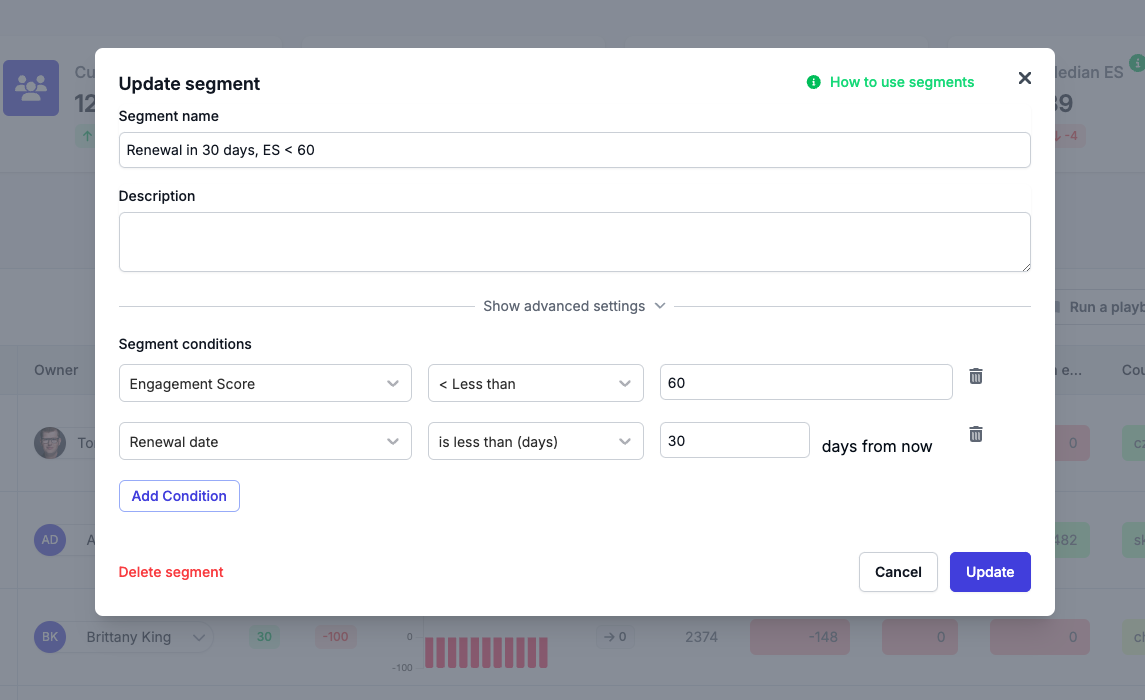
In this example, we will create a segment targeting users whose auto-renewal is in 30 days and whose engagement score is less than 60. Define segment conditions based on who you want to target.
Step 3: Create Email Template
Navigate to Automations → Email templates. Click Create New Template, name the template, add a description, and click Save.
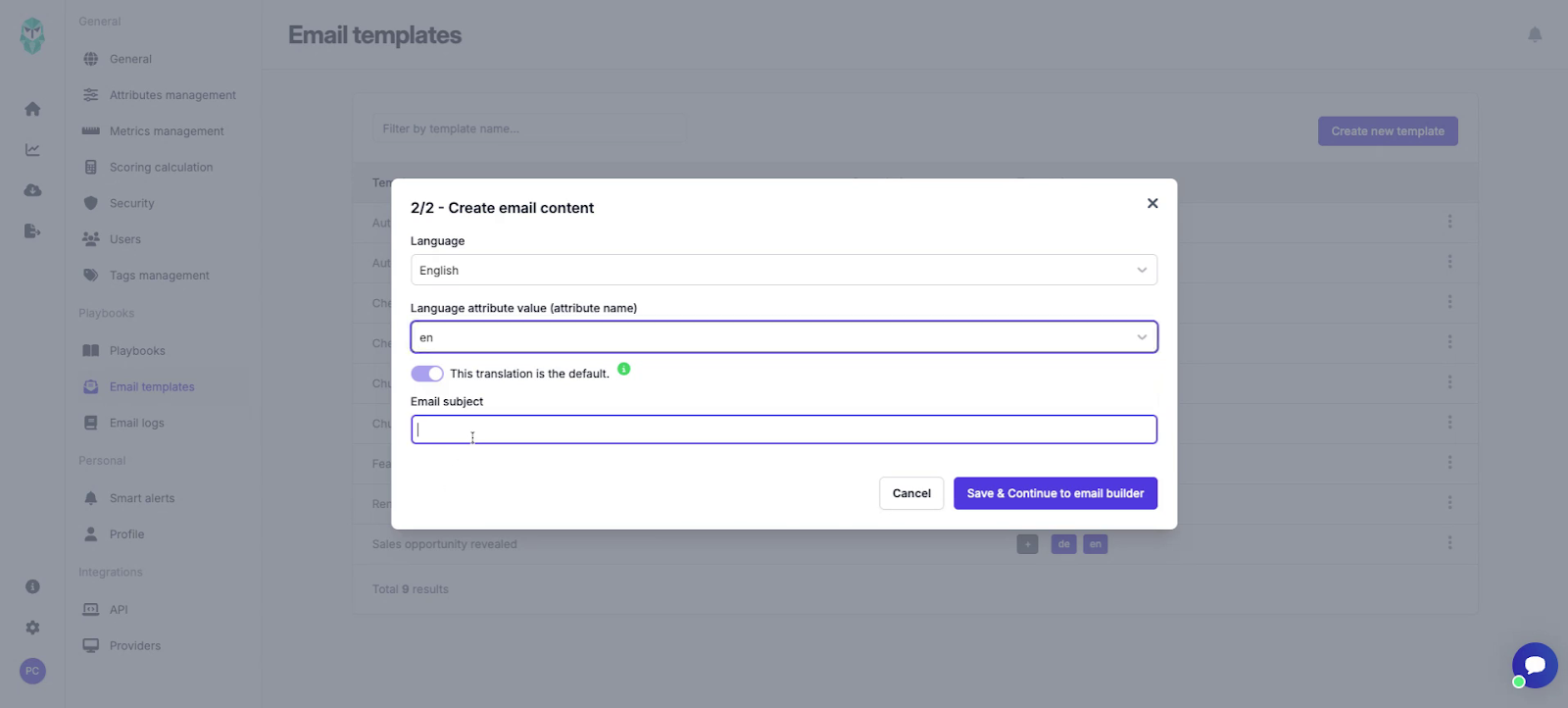
Step 4: Select a Language and Write Email Subject
Select the language of the email template and specify the attribute value relevant to your account. Write a subject for your email.
Step 5: Design Your Email
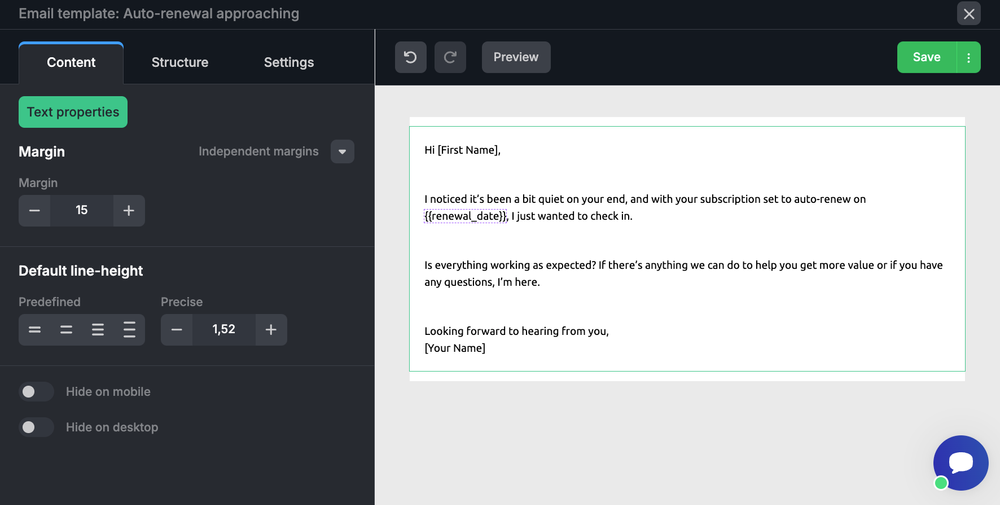
In the email builder, you can choose to start from predefined templates or design your email from scratch, which is recommended in this scenario. Simply click the plus icon and enter your text.
You can also use merge tags to add variables into your email.
Once the email is completed, click Save.
Step 6: Create a Playbook
With the template ready, navigate to Playbooks and create a new Playbook from scratch by clicking on the corresponding button.
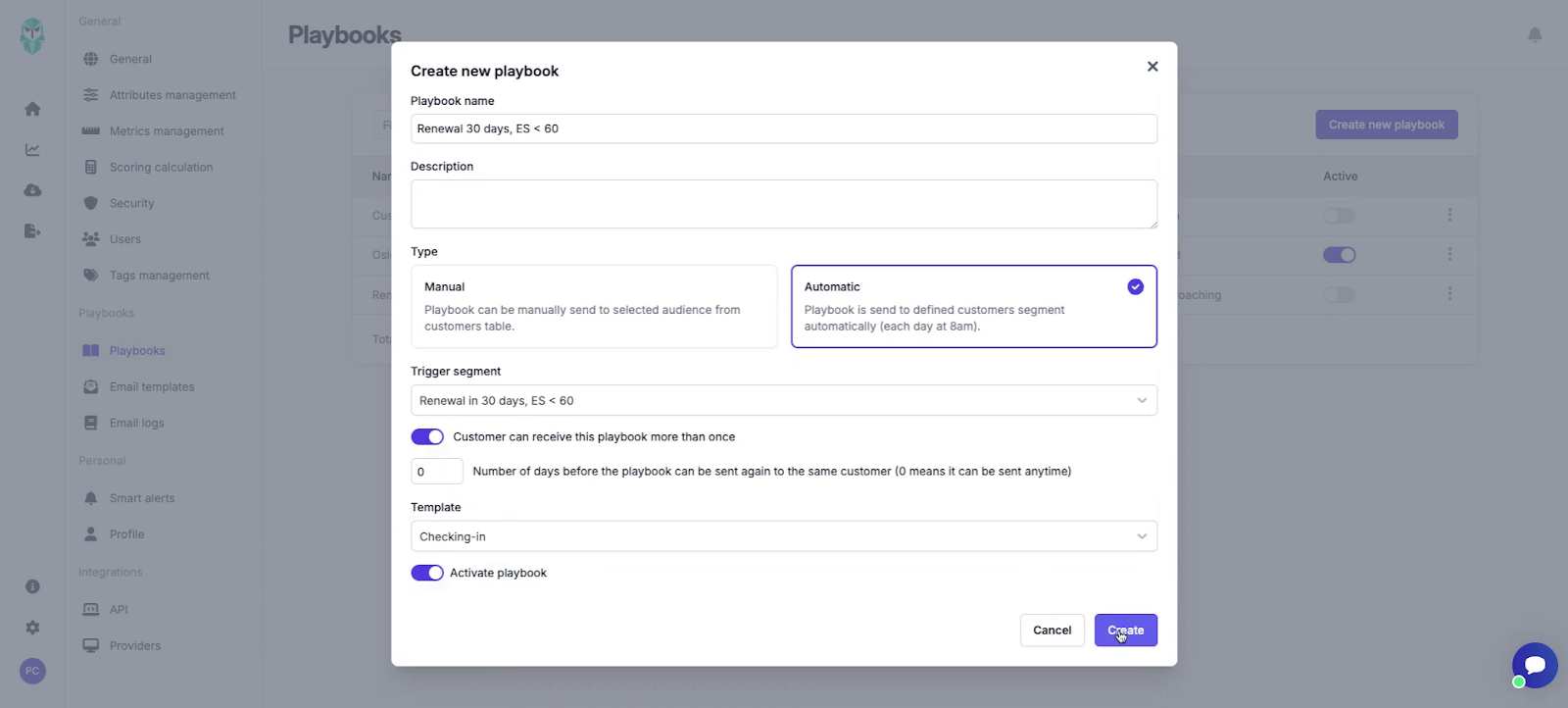
Name the Playbook, for instance, "Renewal 30 Days and Engagement Score Less Than 60." Select the type of your Playbook: Manual, which allows manual sending to a selected audience, or Automatic, which sends the Playbook to a defined customer segment daily at 8:00 a.m. In this case, we will set up an automatic Playbook.
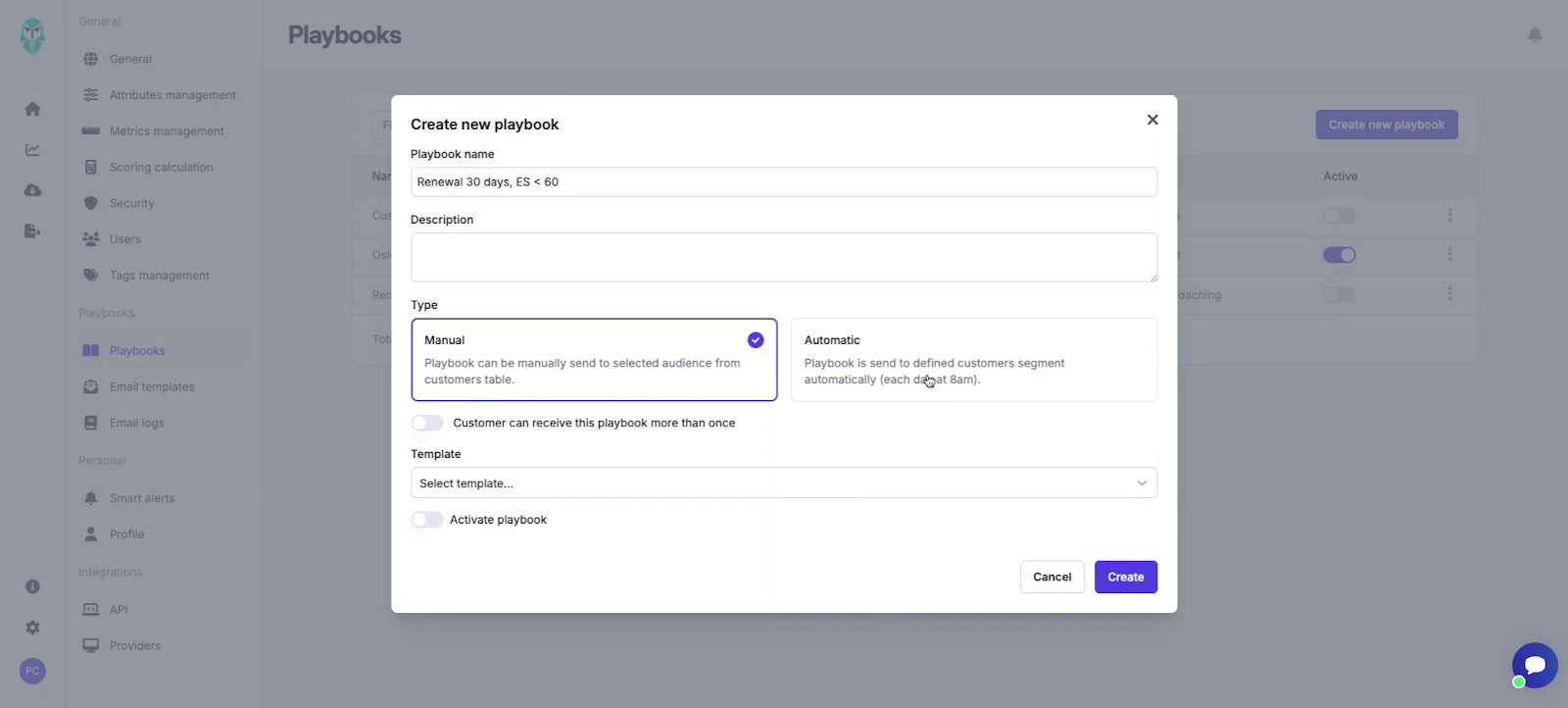
Step 7: Automatic vs Manual Playbook
By clicking on the Automatic button, select the defined segment targeting users with a renewal in 30 days and an engagement score of less than 60.
Decide if customers can receive this Playbook more than once. If so, you can also specify the number of days before the Playbook can be resent to the same customer again.
Select the template you just created and click Activate to initiate the Playbook.
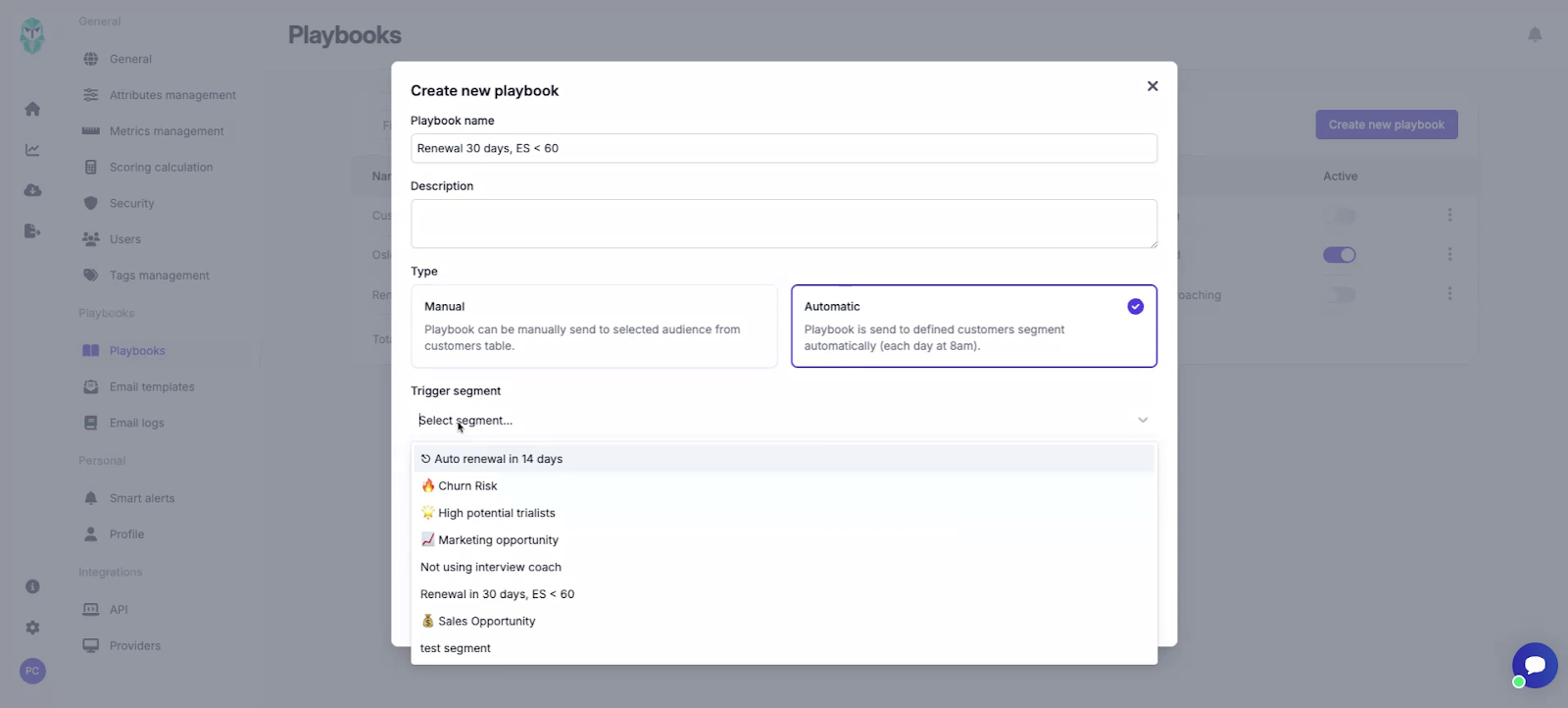
Step 8: Finish the Playbook
The setup is complete. The Playbook is now actively sending to customers.