Chargebee
Connect Chargebee to Customerscore to sync subscription data, billing details, and revenue metrics.
How to Connect Chargebee to Customerscore
Step 1: Prepare Chargebee API Access
-
Log in to your Chargebee account. We'll need the company name from your account URL (e.g.,
yourcompany.chargebee.com— in this case,yourcompanyis the company name). -
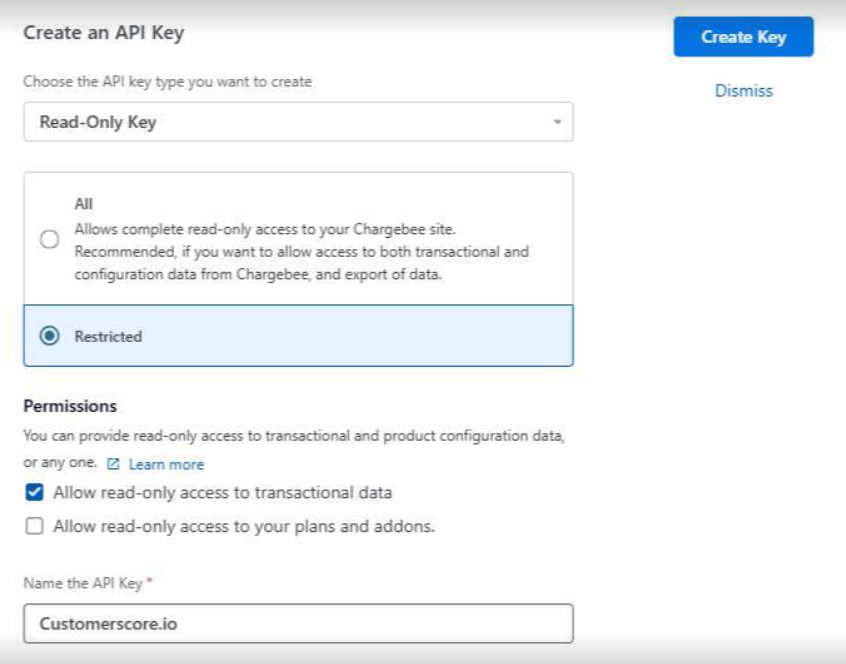
Navigate to Settings → Configure Chargebee → API Keys and Webhooks, then create a new API key. Choose Read-Only Key with Restricted Access. In the Permissions settings, select Allow read-only access to transactional data. For the final step, name the API key
Customerscore.io.
Step 2: Connect in Customerscore
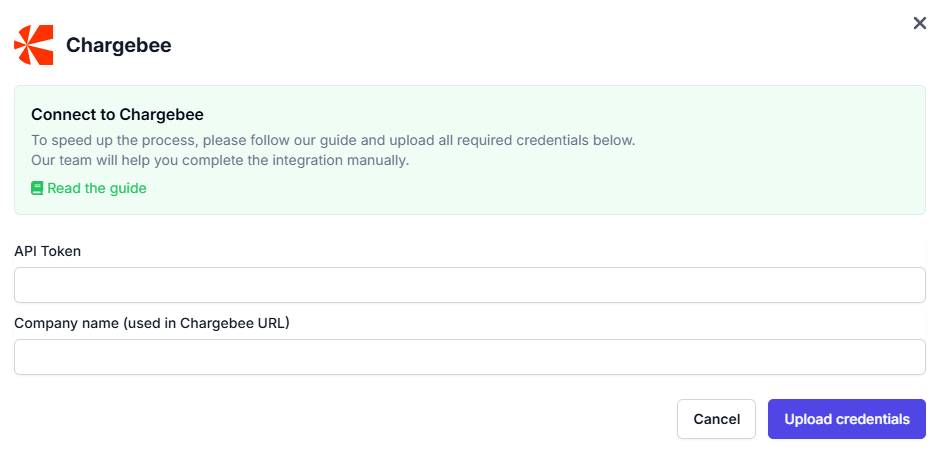
After creating the API token, upload the API token together with the Company name into Customerscore under Settings → Providers (opens in a new tab) by clicking Connect to Chargebee and filling out the form.
What Happens Next?
Once we receive all the required information, we'll begin integrating your Chargebee account with the Customerscore app. Based on typical integration needs, here are the common data attributes we sync:
- Company name
- Contact email
- Billing interval
- Created at (account creation date)
- Currency
- Billing country
- Subscription details (including currency, activation date, term end, renewal date, and status)
- Exchange rate (only needed if customers are billed in multiple currencies)
- Plan information (name, quantity)
- MRR (Monthly Recurring Revenue — can be converted to ARR)
- Any additional fields you'd like to track in the Customerscore app