PostHog
Connect PostHog to Customerscore to sync product analytics and event data.
How to Connect PostHog to Customerscore
Step 1: Prepare PostHog API Access
-
Log in to your PostHog account. We'll need the project ID from your account URL (e.g.,
https://eu.posthog.com/project/12345— in this case,12345is the project ID). -
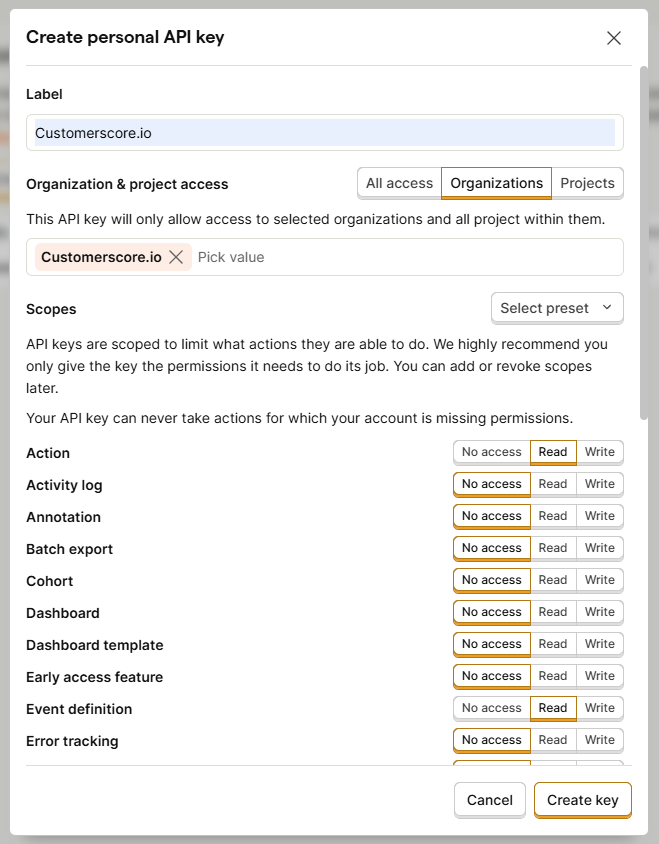
Navigate to Settings → Personal API Keys and click Create personal API key. Start by entering a Label name. Type
Customerscore.ioas the name.
Next, choose the access level: Organization or Project, depending on whether you want to grant access to your entire organization or only to specific projects.
Then, under Scopes, assign permissions to the API key. For the basic setup, grant Read access to the following resources: Action, Event definition, Organization, Project, and Query.
Once you have selected all the required permissions, click the Create key button at the bottom of the form to generate the token.
Step 2: Connect in Customerscore
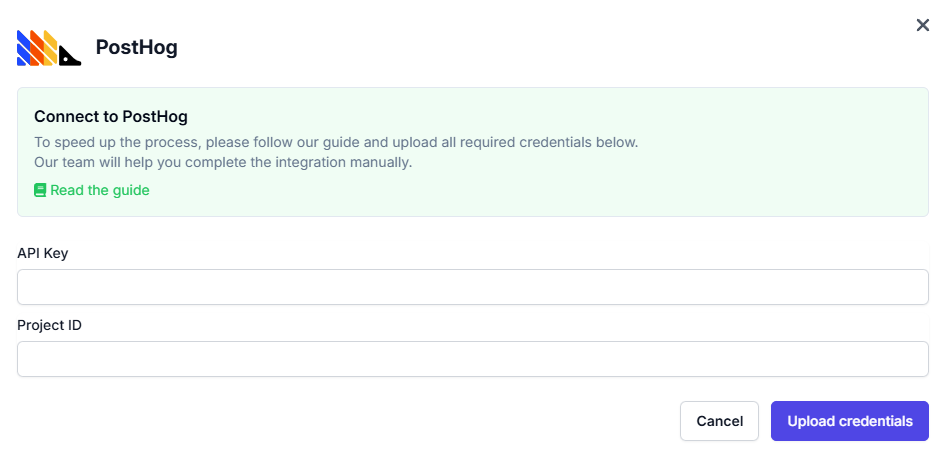
After creating the API key, upload the API key together with the project ID into Customerscore under Settings → Providers (opens in a new tab) by clicking Connect to PostHog and filling out the form.
What Happens Next?
Once we receive all the required information, we'll begin integrating your PostHog account with the Customerscore app.