Customer Rooms
A Customer Room is a shared space for you and one customer — typically for onboarding, an implementation project, or a renewal. It holds a mutual action plan (phases and tasks owned by either side), resources (files, links, videos), and the people involved on both sides. You build the room in Customerscore.io and send your customer a share link: they open it in the browser, no account or login needed, tick off their tasks, and discuss anything in comments.
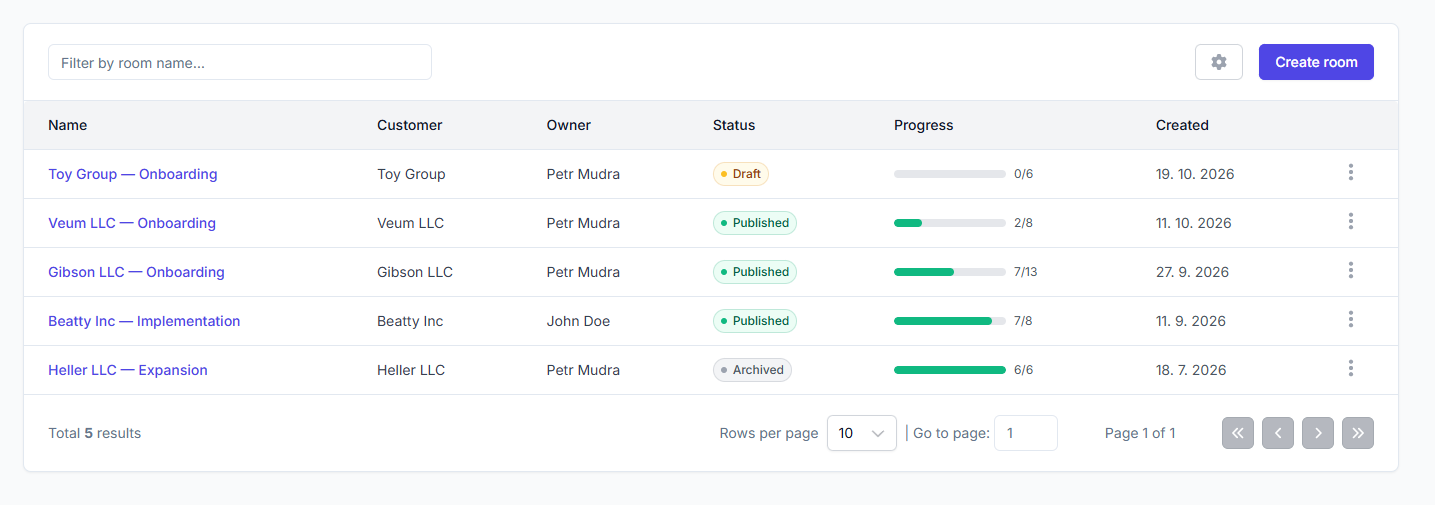
You'll find rooms under Customer Rooms in the main navigation. Every user in your account can create and edit rooms; only the global live chat settings are reserved for admins.
Creating a Room
- Open Customer Rooms and click Create room.
- Enter a Room name (e.g. Acme Corp Onboarding) and pick the Customer it belongs to.
- Click Create room.
The room opens in the editor as a Draft. Nothing is visible to the customer until you publish it, so you can prepare the plan at your own pace.
Already have a room that works well? Use Duplicate from the rooms list instead of starting from scratch. The copy keeps the phases, tasks, and resources; comments and participants are not copied, and all task progress is reset.
Building the Mutual Action Plan
The plan is a list of phases (e.g. Kickoff, Integration, Go-live), each containing tasks. Tasks that don't belong to any phase are listed under Other tasks.
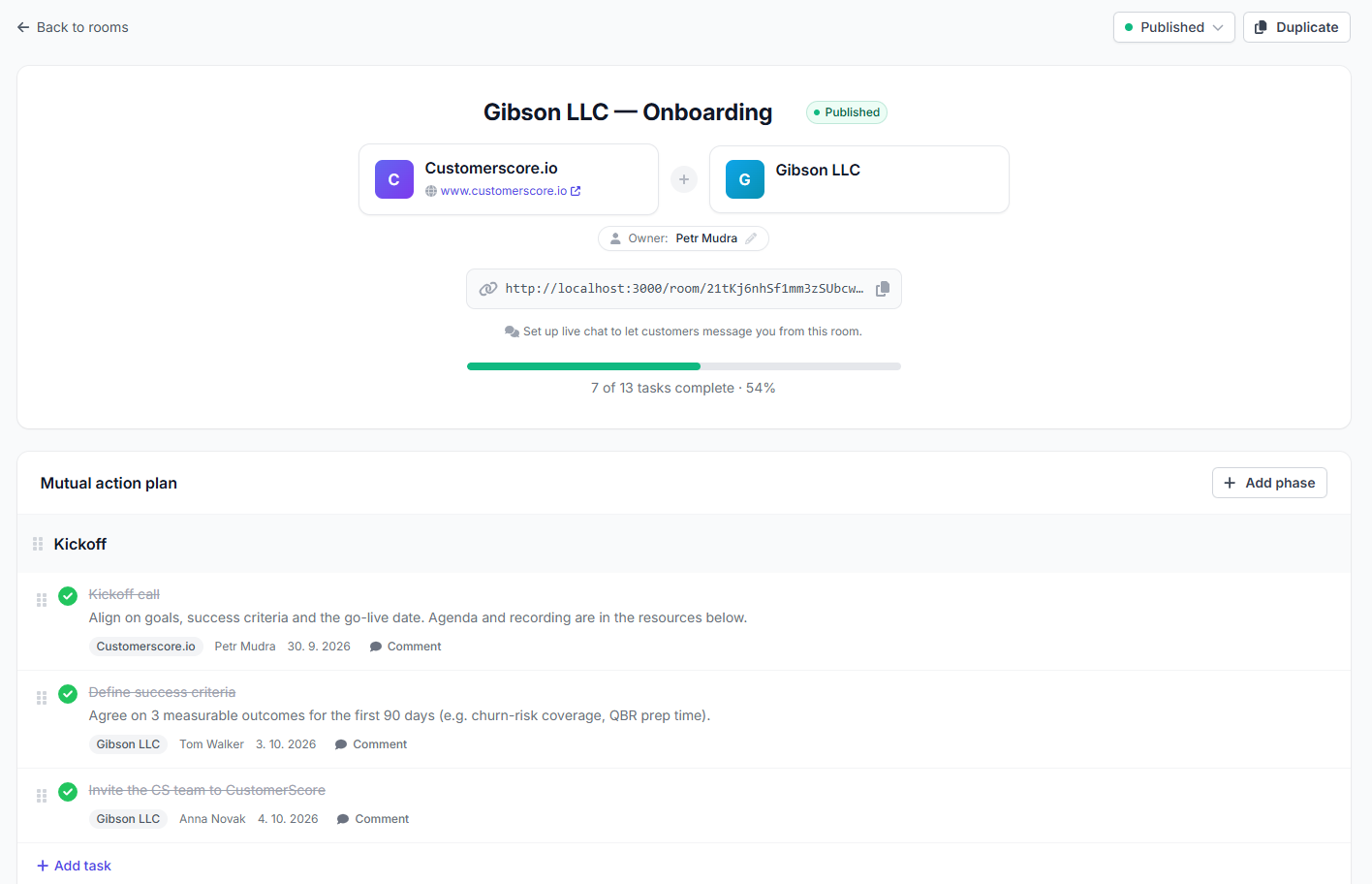
- Add phase — give it a title. Phases can be renamed and reordered by dragging.
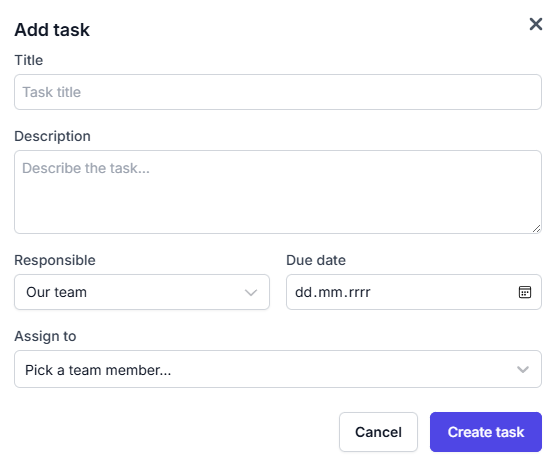
- Add task — fill in the title, an optional description, and a due date, then choose who is Responsible:
- Our team — assign it to one of your team members.
- Customer — assign it to a customer participant. You can type a new name to add that person on the spot.
- Tasks can be reordered by dragging, edited, reassigned, or deleted at any time.
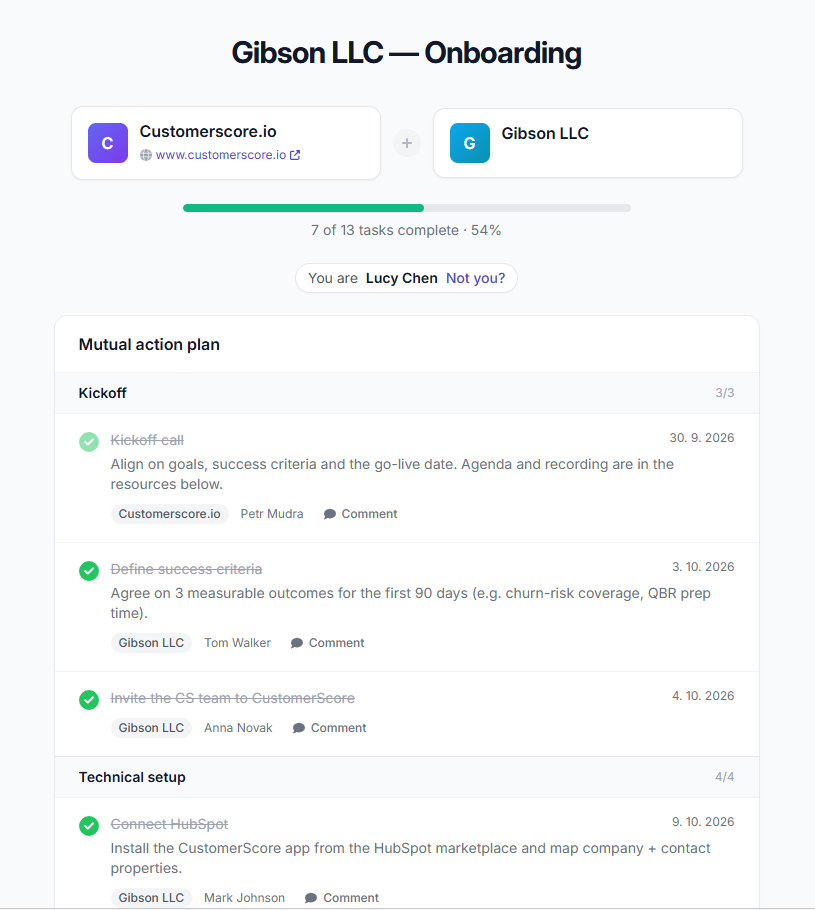
The progress bar at the top shows how many tasks are complete — the same number your customer sees, and the same one shown in the Progress column of the rooms list.
Your customer can mark customer-side tasks as done (and reopen them) right on the shared page. Tasks owned by your team can only be completed from inside Customerscore.io.
Adding Resources
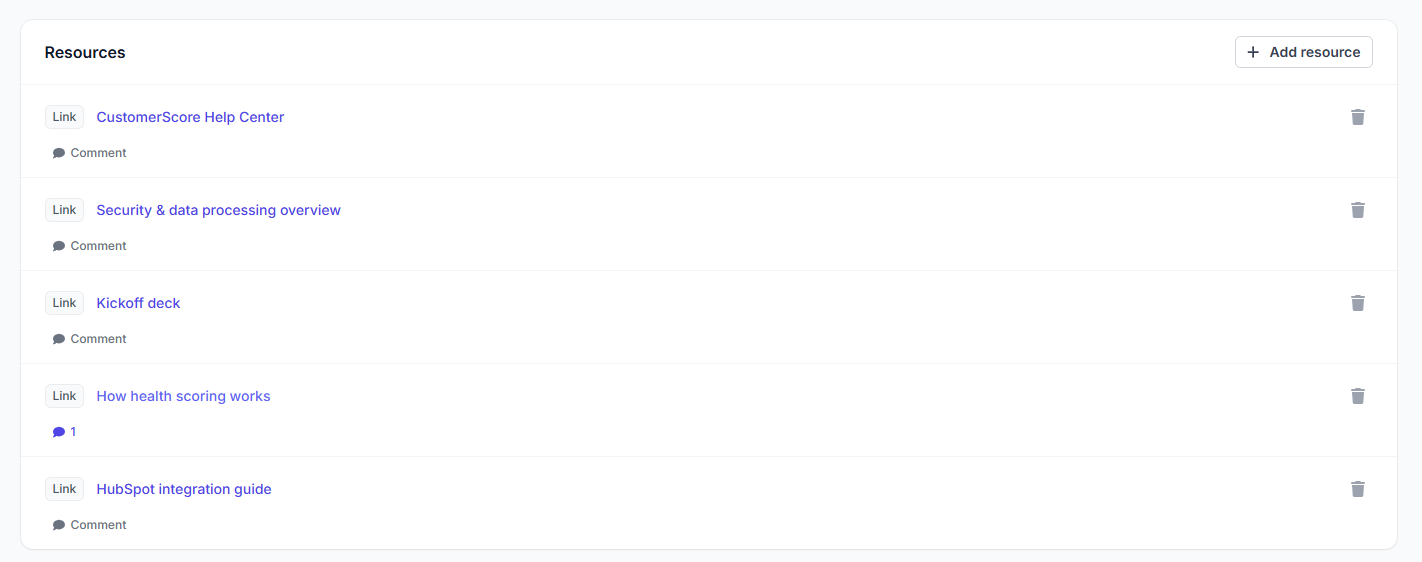
Resources are the materials your customer needs during the project. Click Add resource and choose a type:
| Type | What it does |
|---|---|
| File | Upload a document (up to 25 MB). The title defaults to the file name. |
| Link | Any URL — a help article, a booking page, a shared folder. |
| Video | YouTube, Vimeo, and Loom links play inline in the room; other video links open in a new tab. |
Participants
The Participants panel lists everyone involved, split into two sides:
- Your team — pick active users from your Customerscore.io account. One of them is the room Owner, shown as the main point of contact.
- Customer — add people by name, with an optional email and role (e.g. CTO).
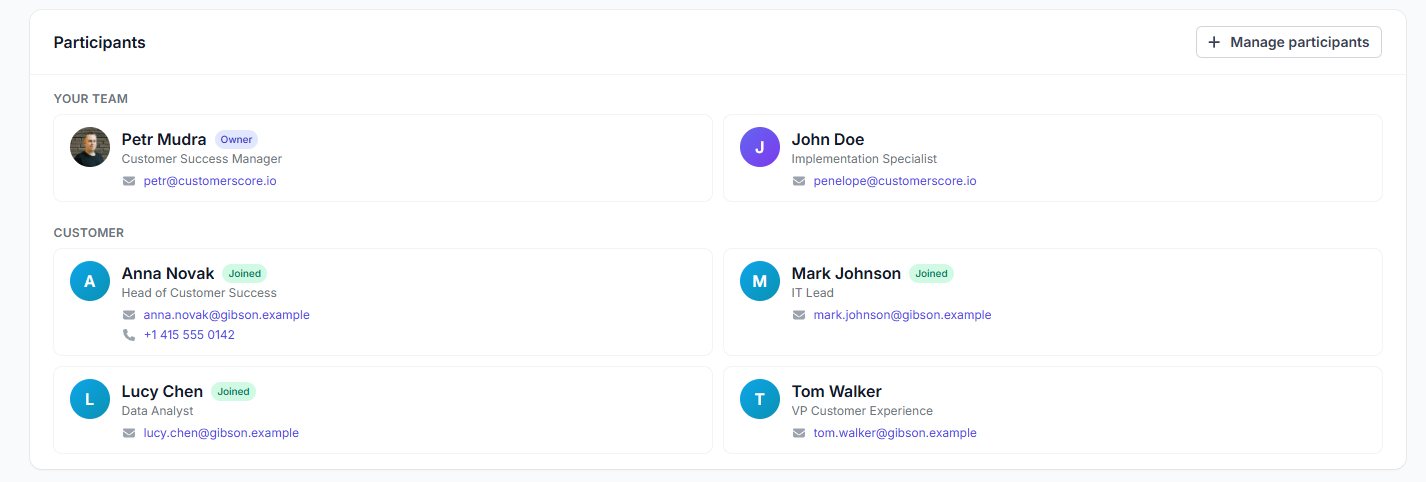
Adding a participant does not send any email. To bring the customer in, copy the share link and send it yourself.
Customer participants get a Joined badge once they open the room and identify themselves, so you can see at a glance who has actually been there.
Publishing and Sharing
A room is always in one of three states:
| Status | Share link | Use it for |
|---|---|---|
| Draft | Inactive | Preparing the room before the customer sees it |
| Published | Active | The project is running |
| Archived | Inactive | The project is over; the room is kept for reference |
Click Publish to activate the room, then Copy link and send it to your customer through any channel you like. You can move a room back to Draft, Archive it, or Restore it later from the rooms list. A room can also be deleted permanently, together with all its data.
Anyone with the share link can open the room while it is published. Treat the link like a private document link — share it only with the people involved, and archive the room when the project is finished.
What Your Customer Sees
The shared page shows both companies side by side, the progress bar, the mutual action plan, the resources, and the people on both teams.
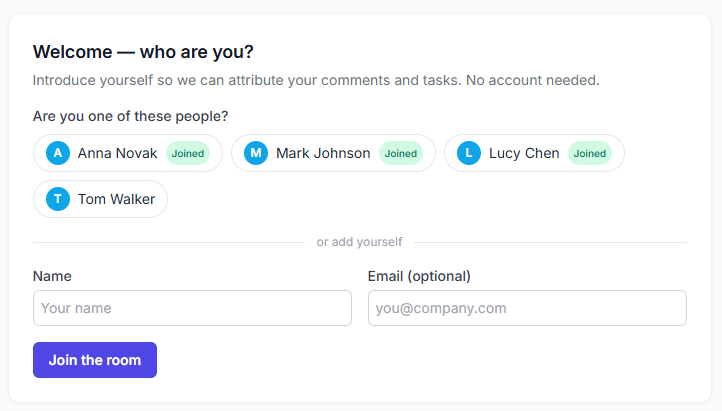
On the first visit, the customer is asked "Welcome — who are you?". They either pick themselves from the list of customer participants, or add themselves with a name and an optional email. This is a lightweight self-introduction, not a login — it exists so that comments and completed tasks are attributed to the right person. The choice is remembered in their browser; picking the same name again on another device restores the same identity, and Not you? lets them switch.
The page is available in English, Czech, German, Spanish, French, Italian, and Brazilian Portuguese — your customer can switch the language in the page header.
Comments and @Mentions
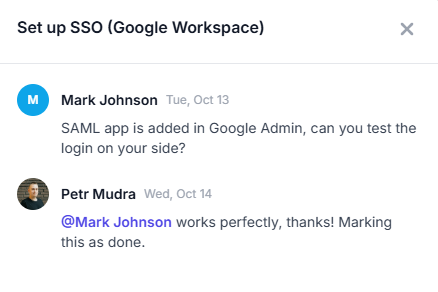
Tasks and resources have their own comment threads, open to both sides — your team from the editor, your customer from the shared page.
- Type @ to mention someone from either side. Mentioned participants with an email address receive an email notification with a link straight to the room.
- Notifications are sent only when a comment is created, not when it is edited, and never to the comment's author.
- Everyone can edit and delete their own comments; admins can also delete comments written by teammates.
Live Chat
You can show your own chat widget on published rooms, so customers can reach you while they work through the plan. Supported providers are Crisp, Intercom, and Smartsupp.
To set it up (admins only):
- Open Customer Rooms and click the Settings (gear) icon next to Create room.
- Turn on Enable live chat in Customer Rooms.
- Choose your Chat provider and paste its key:
| Provider | Key | Where to find it |
|---|---|---|
| Crisp | Website ID | Crisp → Settings → Workspace Settings → Setup & Integrations |
| Intercom | App ID | Intercom → Settings → Workspace → General |
| Smartsupp | Chat key | Smartsupp → Settings → Channels → Live chat → Installation (the _smartsupp.key value) |
- For Intercom, also choose the Hosting region (US, EU, or AU) — it must match the region your workspace is hosted in, otherwise the chat bubble won't connect.
- Save.
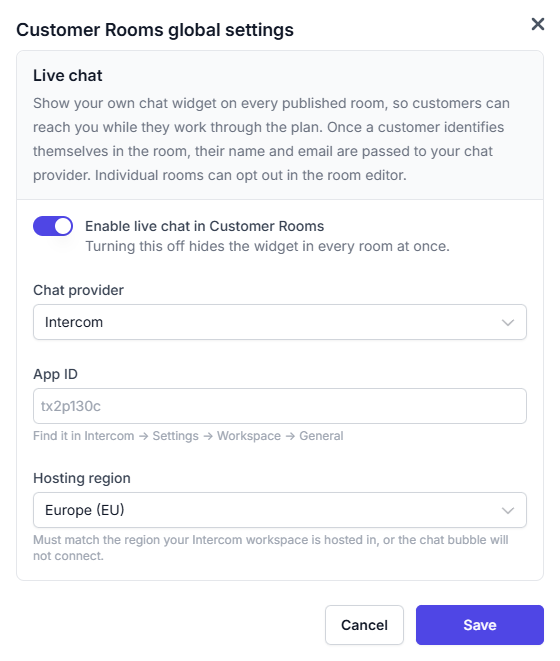
The widget then appears in every published room. To hide it in a single room, switch off Live chat in that room's editor; turning off the global switch hides it everywhere at once.
Once a customer has identified themselves in the room, their name and email are passed to your chat provider, so conversations arrive already attributed to the right person.
For security reasons, Customer Rooms only support the providers listed above and only ask for their key — pasting arbitrary embed code is not possible. If your Intercom workspace enforces Identity Verification, visitors will appear as anonymous in Intercom.
FAQ
Does my customer need a Customerscore.io account?
No. The share link is all they need. The self-introduction on the first visit only attributes their comments and completed tasks — there is no password and no email verification.
Does adding a participant notify them?
No. Participants are only a roster. Customers receive email only when someone @mentions them in a comment (and they have an email filled in). Send the share link yourself.
Can I stop sharing a room?
Yes — move it back to Draft or Archive it. The link stops working immediately and shows "Room not found". Publishing the room again reactivates the same link.
Can I reuse a room as a template?
Use Duplicate in the rooms list. You get a copy of the plan and resources with fresh progress, ready for the next customer.
Can my customer complete tasks owned by my team?
No. On the shared page customers can only tick off tasks assigned to the customer side. Your team's tasks are managed in Customerscore.io.