QBR Reports
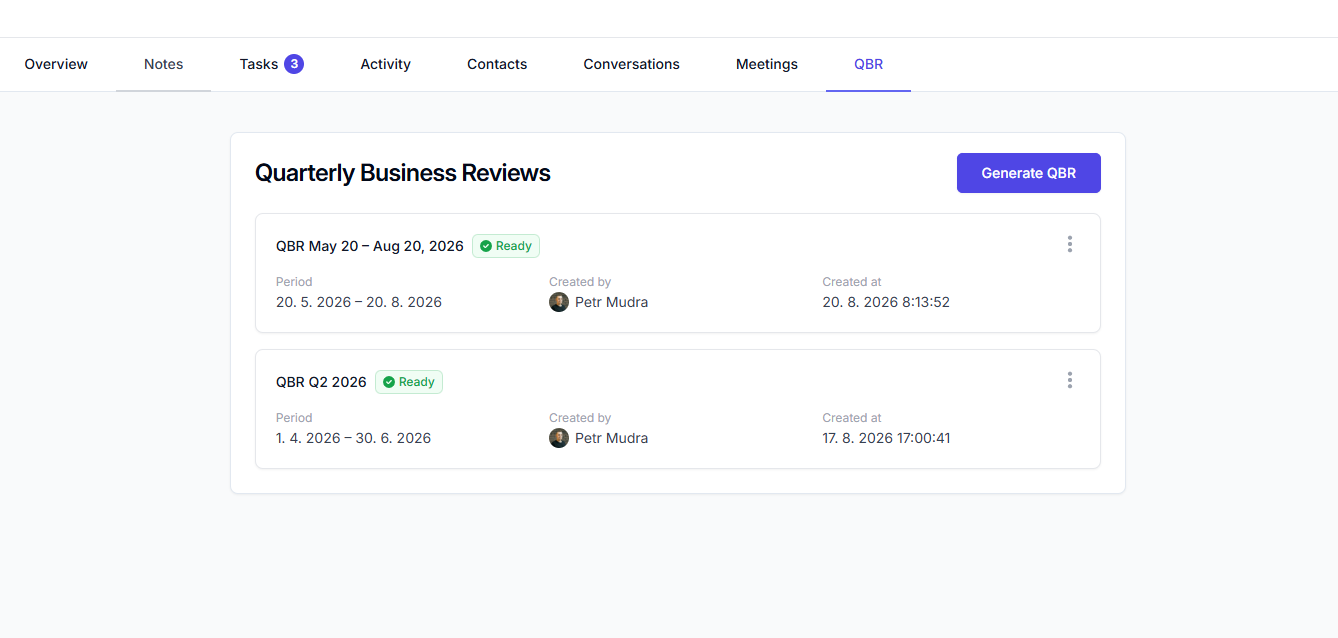
Customerscore.io can draft a complete Quarterly Business Review (QBR) for any customer in minutes. Pick a period and a language, and the AI turns the customer's health history, usage metrics, revenue trend, conversations, meetings and notes into a structured, presentation-ready report — which you can then edit section by section and export as a PDF or a PowerPoint deck.
You'll find QBRs in the QBR tab on every customer detail page.
What You Get
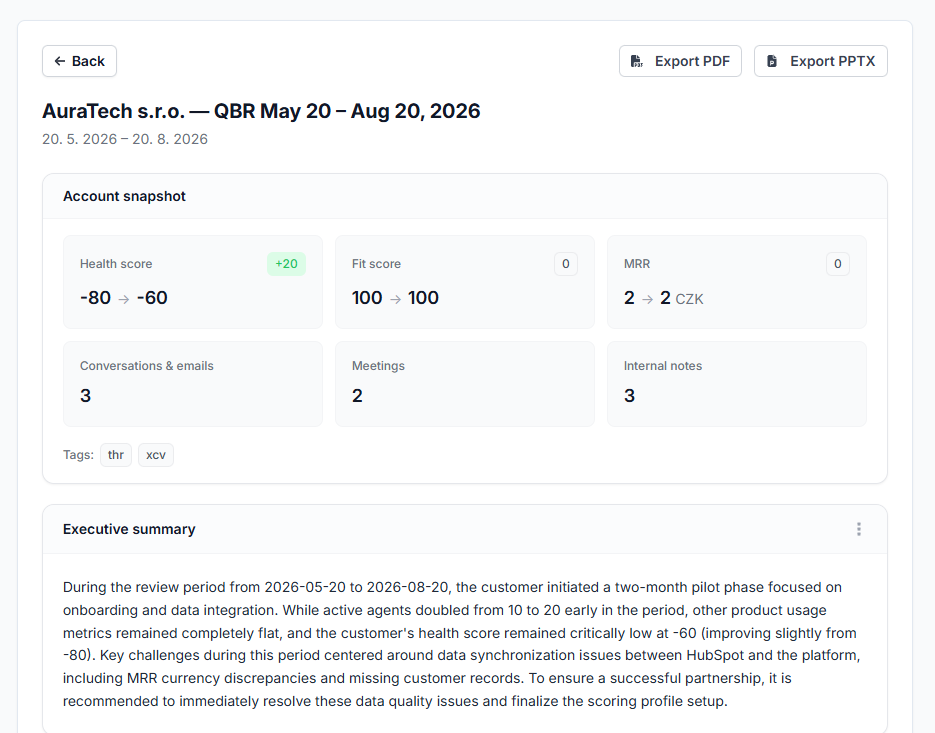
Every generated report contains:
- A snapshot table of hard numbers frozen at generation time — health and fit score at the start and end of the period, MRR, tags, and the number of conversations, meetings and notes.
- Seven AI-written sections:
- Executive summary — the state of the account at a glance.
- Health & engagement trend — how the health score and engagement developed over the period.
- Product usage review — usage patterns, adoption and notable changes.
- Financial overview — MRR trajectory, plan and billing context.
- Communication & relationship summary — what your conversations and meetings say about the relationship.
- Risks & opportunities — what could go wrong and where there's room to grow.
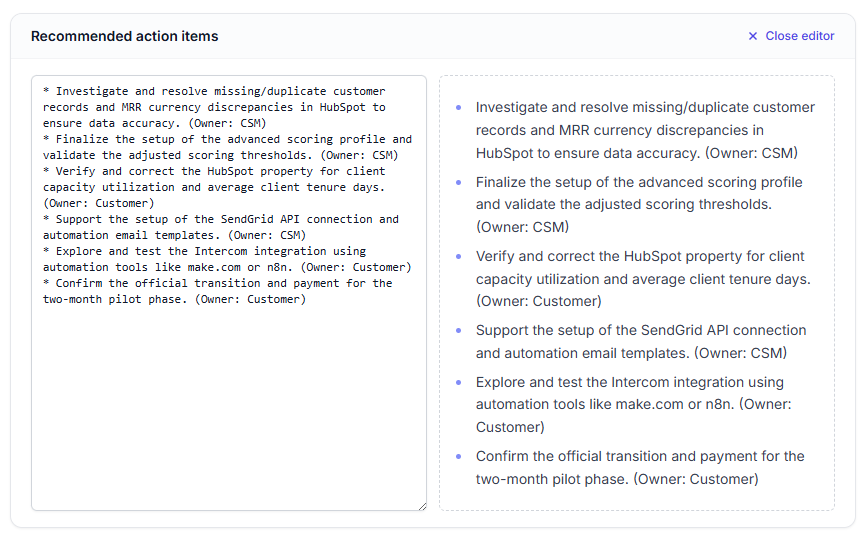
- Recommended action items — concrete next steps for the account team.
The AI only summarizes what's actually in your data. If a data category is empty for the period (for example, no meetings were recorded), the report says so explicitly instead of speculating.
Data Sources
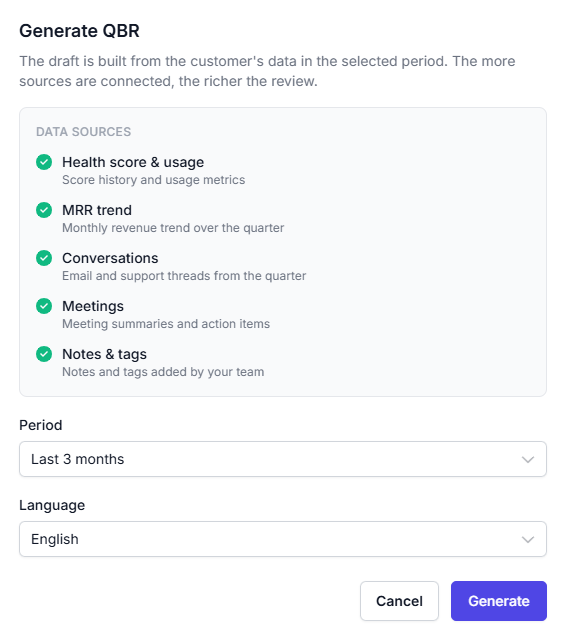
The report is built from the data sources connected to your account. The generate dialog shows which ones are active before you start:
| Source | What it contributes | How to connect |
|---|---|---|
| Health score & usage | Score history and usage metrics over the period | Always included |
| MRR trend | Monthly revenue trajectory | Set an MRR property (Stripe, Chargebee, or your own data) |
| Conversations | Email and support threads from the period | Gmail or Intercom |
| Meetings | Meeting summaries and action items | Fireflies.ai or tl;dv |
| Notes & tags | Notes and tags added by your team | Always included |
A QBR works with any subset of these sources — but the more you connect, the richer and more specific the review. Health, usage, notes and tags are always available.
Generating a QBR
- Open a customer and switch to the QBR tab.
- Click Generate QBR.
- Review the listed data sources, then choose a period and a language.
- Click Generate.
Generation runs in the background and typically takes a couple of minutes. You can navigate away freely — you'll receive an email as soon as the report is finished (or if generation fails). Only one QBR can be generating per customer at a time.
Periods
- Last 3 months (default), Last 2 months, or Last month — a trailing window ending today.
- Last completed quarter — the most recent full calendar quarter (for example, Q2 2026). Quarter reports are titled accordingly (e.g. QBR Q2 2026).
Languages
Reports can be generated in English, Czech, German, French, Spanish, Italian, and Brazilian Portuguese — chosen per report, so you can prepare the review in the language your customer actually speaks.
Editing the Report
Every section of a finished report is editable markdown. Click into a section, adjust the AI draft — soften a risk, add context the data can't know, drop an irrelevant bullet — and save. The snapshot numbers stay frozen as they were at generation time, so the report remains a faithful record of the period.
Previous reports are kept in the QBR tab's history, so you can compare quarter over quarter.
Exporting
A finished report exports with one click as:
- PDF — a clean document for sharing by email or attaching to a Customer Room.
- PowerPoint (PPTX) — a 16:9 deck with a title slide, a snapshot slide, and one slide per section, ready to present or restyle in your own template.
Exports always include your latest edits.
Data Privacy & Security
- QBR generation is powered by Google Gemini via Google Cloud Vertex AI, with data processed in the EU.
- The customer's name and contact email addresses are never sent to the AI model — the model works with anonymized account data only.
- Your data is sent solely to generate the report and is never used to train AI models.
- Full terms are available in our AI Features Terms of Use (opens in a new tab) and List of Processors (opens in a new tab).
FAQ
How long does generation take?
Typically a couple of minutes, depending on how much data the period contains. You'll get an email when the report is ready, so there's no need to wait on the page.
What if a data source isn't connected?
The report is still generated from the sources you have. Sections that depend on missing data state that explicitly (for example, "No meetings were recorded in this period") rather than guessing.
Can I regenerate a report?
Yes — generate as many reports as you like; each one is kept in the customer's QBR history. Only one report per customer can be generating at any moment.
Can I change the AI's text?
Yes. Every section is editable markdown, and exports always reflect your edits. The snapshot numbers are frozen at generation time and can't be changed.
Is this only for quarterly reviews?
No — despite the name, you can generate a review for the last month, two months, three months, or the last completed calendar quarter. It works just as well for monthly business reviews or renewal-prep summaries.